![logo.png]](https://4429584.hs-sites.com/hs-fs/hubfs/logo.png?height=40&name=logo.png)
Level: intermediate
Objective:
Help you understand how to include a live link within a web form.
Using live links
Including links within your form is a useful way to easily direct your clients to additional information. For example, you may want to link to your privacy policy and terms of service. Or you may want to link to another form. In the example, below Dr. Rogers invites clients filling out his New Client Questionnaire to take the PHQ-9 depression screening.
4 steps to including live links within your forms
1. Drag and drop a paragraph field into your form
2. Type the following HTML code into the Paragraph Text field
The text that will show up as the live link is the text between <a href="http://example.com"> and </a>. In the example below, PHQ-9 is the live link in the published form.

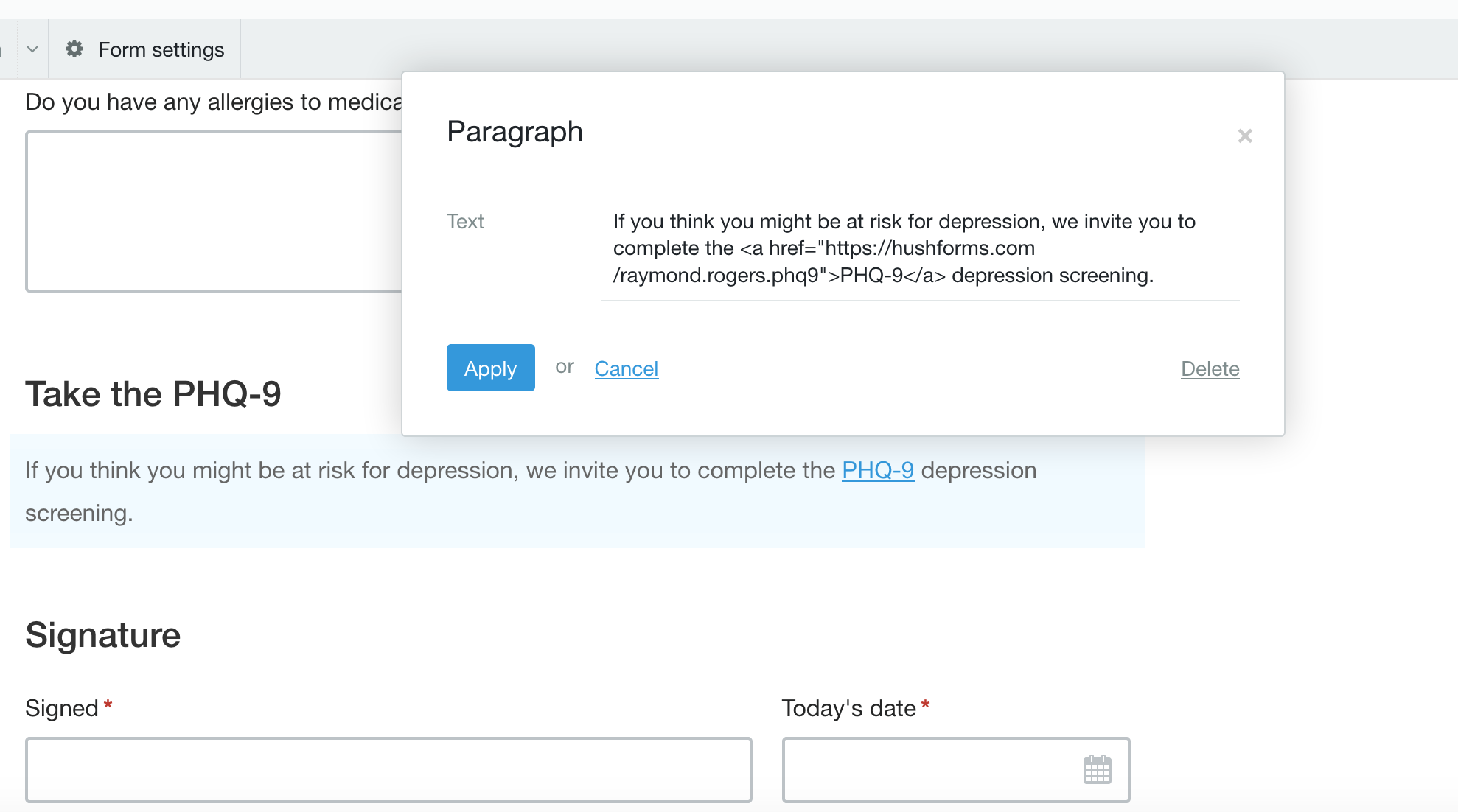
3. Make sure that you use the exact code we've provided for you
Any small variation, curvy quotation marks versus straight, for example, can break the link.
4. Make sure that you replace http://example.com with your own link
Any errors in the link will result in a broken link to the page you’re trying to send your clients to.
Next steps:
If you need extra help with building your forms, is always happy to assist.
Or take a look at the help articles listed below.
Resources:
Create a "smart" subject line for your web form