![logo.png]](https://4429584.hs-sites.com/hs-fs/hubfs/logo.png?height=40&name=logo.png)
Set up iPhone and iPod Touch to work with Hushmail (POP)
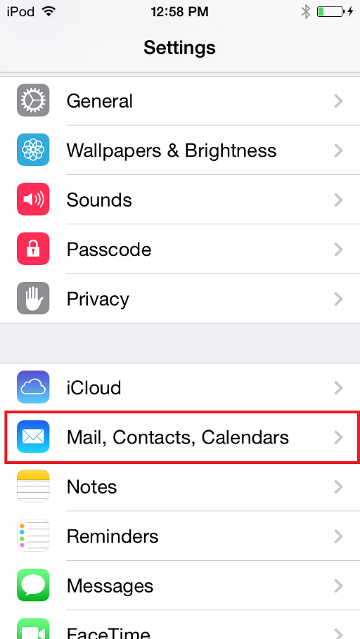
- Tap Settings.

- Tap Mail, Contacts, Calendars (iOS 10 or below) or Accounts & Passwords (iOS 11).
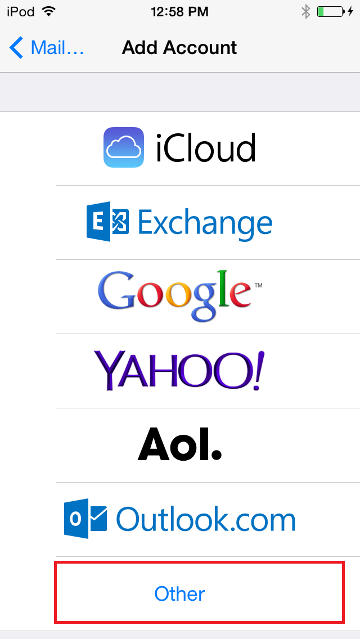
- Tap Add Account.

- Tap Other, then tap Add Mail Account
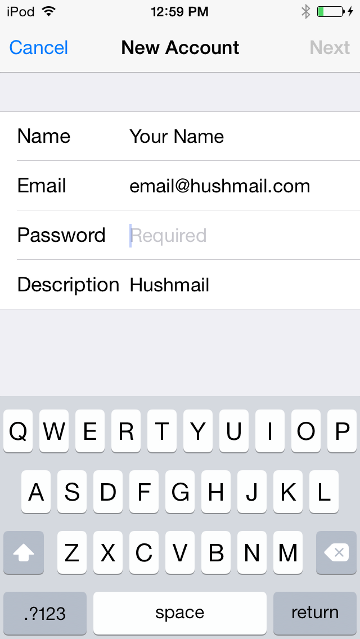
- Enter your account information.
Name: your name
Address: your full email address
Password: your passphrase
Description: a description for this accountTap Next.
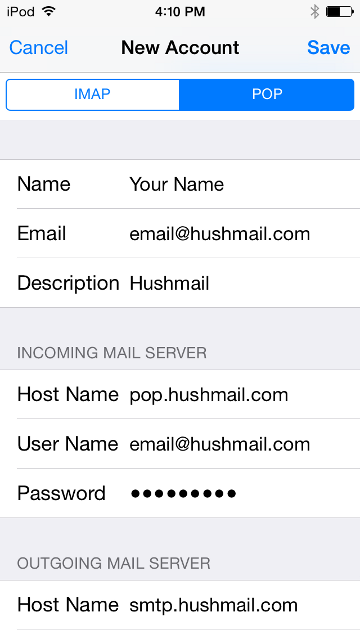
- Select POP and enter your server settings. When you have finished, tap Next.
Incoming Mail Server
Host Name: pop.hushmail.com
User Name: your full email address
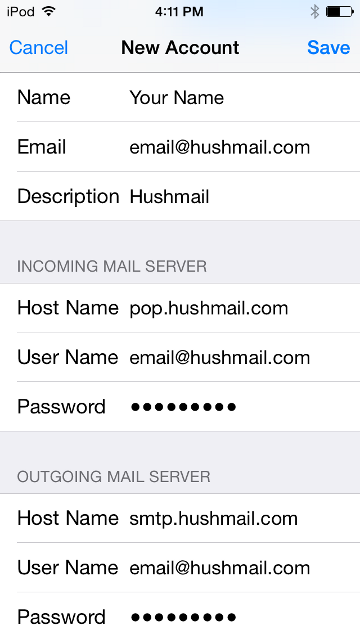
Password: your passphraseOutgoing Mail Server
Host Name: smtp.hushmail.com
User Name: your full email address
Password: your passphrase

- Click, Save, and your account is now setup.